4K Security Camera Bandwidth Requirements for a Home Network
Calculate 4k security camera bandwidth requirements for home network setups. Learn bitrate tips, avoid Wi-Fi lag, and optimize your local storage streaming.

A 4K label doesn’t tell you whether your home network can handle a camera system. Understanding 4k security camera bandwidth requirements for home network planning starts with each camera’s configured bitrate, not resolution alone. As a general estimate, a 4K camera using H.265 may use 8-12 Mbps, though frame rate, scene activity and camera settings can change the actual figure.
It’s reasonable to worry that several cameras could overload Wi-Fi or your internet connection. The key is to separate local network traffic from internet upload: cameras recording to a local recorder or memory card can send video across your home network without continuously uploading it online. Remote viewing and cloud recording, by contrast, rely on your internet upload capacity.
This guide explains how to add camera bitrates to estimate total traffic, and how recording, live viewing, storage and remote access affect network demand. You’ll also learn how to plan the connections between cameras, your router and recording equipment, so you can support clear footage and responsive viewing without upgrading more than necessary. These basics can help you choose and install a suitable home camera system, including Eufy and EZVIZ options.
Key Takeaways
- For accurate 4k security camera bandwidth requirements for home network planning, add the configured bitrate of every camera rather than relying on resolution alone.
- Check whether live viewing uses a separate stream, as it may add traffic beyond the recording stream.
- Map the path from each camera to the recorder or router, then account for extra capacity needed for remote viewing.
- Compare your estimated traffic with the documented capabilities of your router, recorder and network connections.
- Plan camera placement and connectivity together when selecting a system or arranging professional installation.
Table of Contents
- What 4K security camera bandwidth means for a home network
- How to estimate bandwidth for multiple 4K security cameras
- Local recording, Wi-Fi, and internet upload: which link carries the video?
- How to check whether your home network can handle 4K cameras
- Planning a 4K camera setup with Wide Way
What 4K security camera bandwidth means for a home network
Bandwidth is the rate at which data moves across a connection. For a security camera, the key figure is usually its video bitrate, measured in megabits per second (Mbps). It describes how much encoded video the camera sends each second, whether the destination is a recorder on your home network or a service reached through the internet.
These figures describe different parts of the setup. A camera’s bitrate is not the same as your internet plan’s speed, and neither tells you directly how much data accumulates over a month. The path matters too: video sent to a local recorder uses capacity between the camera and recorder, while remote viewing may also use your home internet upload connection.
Configured bitrate and camera count determine aggregate camera traffic. That’s the starting point for estimating what each network link must carry. It also explains why a 4K label alone can’t tell you whether Wi-Fi, a router connection or your internet service has enough capacity.
Bitrate, bandwidth, and data use are different measurements
Bitrate is the encoded video data rate over time. If several cameras send video over the same link simultaneously, their bitrates add together. For example, three cameras configured at different bitrates require capacity for the sum of those streams on the shared link. The total can vary from one link to another, depending on which devices and destinations the video passes through.
Mbps measures a rate. Gigabytes (GB) measure accumulated data. A camera that sends data continuously for longer will produce more stored data, even if its bitrate stays the same. This distinction matters when planning both connection capacity and storage: the network must carry video as it is sent, while storage must hold the volume recorded over time.
Why 4K resolution alone cannot determine network demand
4K describes image resolution, not a single required bitrate. The 4K resolution reference outlines different 4K standards, but resolution is only one part of a camera’s data use. Frame rate, movement in the scene and fine visual detail all affect how much data the camera needs to encode a stream.
Compression matters as well. H.264 and H.265 are video compression standards, but their results depend on the camera’s implementation and settings. Two cameras set to the same resolution may therefore send different bitrates. A busy scene with frequent movement can also require a different data rate from a mostly static view.
For a reliable estimate of your 4k security camera bandwidth requirements for home network, use the selected camera’s configured bitrate or model-specific specification. Check the settings you plan to record with, rather than assuming every 4K camera uses the same bandwidth. Then account for the cameras and streams that will share each network connection. This gives you a practical basis for planning without treating resolution as a bandwidth figure.
How to estimate bandwidth for multiple 4K security cameras
A useful estimate starts with the streams that will cross each network link at the same time. Don’t multiply a generic “4K bandwidth” figure by the camera count. Use each camera’s configured bitrate, then account for any additional live-view streams sharing the link. This gives you a practical estimate for the specific network path you’re planning.
A simple bitrate calculation for a home setup
Find each camera’s configured bitrate in its settings or model documentation. If that figure isn’t displayed, use the manufacturer’s specification for the selected recording settings. Then add the bitrates for feeds transmitting simultaneously across the same link. To total simultaneous camera feeds, add each stream’s configured bitrate on the link carrying those streams.
For example, imagine a hypothetical setup with four cameras configured at 8, 9, 8 and 10 Mbps. These sample figures are illustrative only, not universal 4K camera requirements. If all four recording streams cross the same link, the estimated total is 35 Mbps.
Next, check whether live viewing uses the recording stream or a separate stream. In another illustrative example, two viewers each access a separate 3 Mbps stream over that same link. Add those streams to the recording traffic there, bringing the example total to 41 Mbps. If live viewing uses a lower-bitrate stream or travels over a different network path, the added demand will differ.
Map the connections before deciding which figures to combine. A camera sending video directly to a recorder may use a different link from a phone viewing footage through the router. The relevant total is the traffic that actually shares a connection, not necessarily every stream in the system added together.
Allow headroom for changing network conditions
The configured bitrate gives you a planning baseline, not a promise that traffic will stay perfectly flat. Camera activity and settings can affect the stream, while simultaneous viewing can add demand. Other household devices also share Wi-Fi capacity, so a connection that works when the home is quiet may feel less responsive during a busy period.
To refine your estimate, make a short inventory of the network paths and check each one:
- List every camera’s configured recording bitrate and note the link carrying its feed.
- Include separate live-view streams only on the links they actually use.
- Record which other devices typically use the same Wi-Fi or wired connection during peak household use.
Then test the system during a representative busy period, with the cameras recording and the usual household devices active. Observe whether feeds remain clear and viewing stays responsive. If performance suffers, review the camera settings, connection path and link capacity before assuming the internet plan is the cause. This measured approach makes 4k security camera bandwidth requirements for home network planning more accurate than relying on a one-size-fits-all number.
Professional security camera installation brings camera placement and network connectivity into the same planning process.
Local recording, Wi-Fi, and internet upload: which link carries the video?
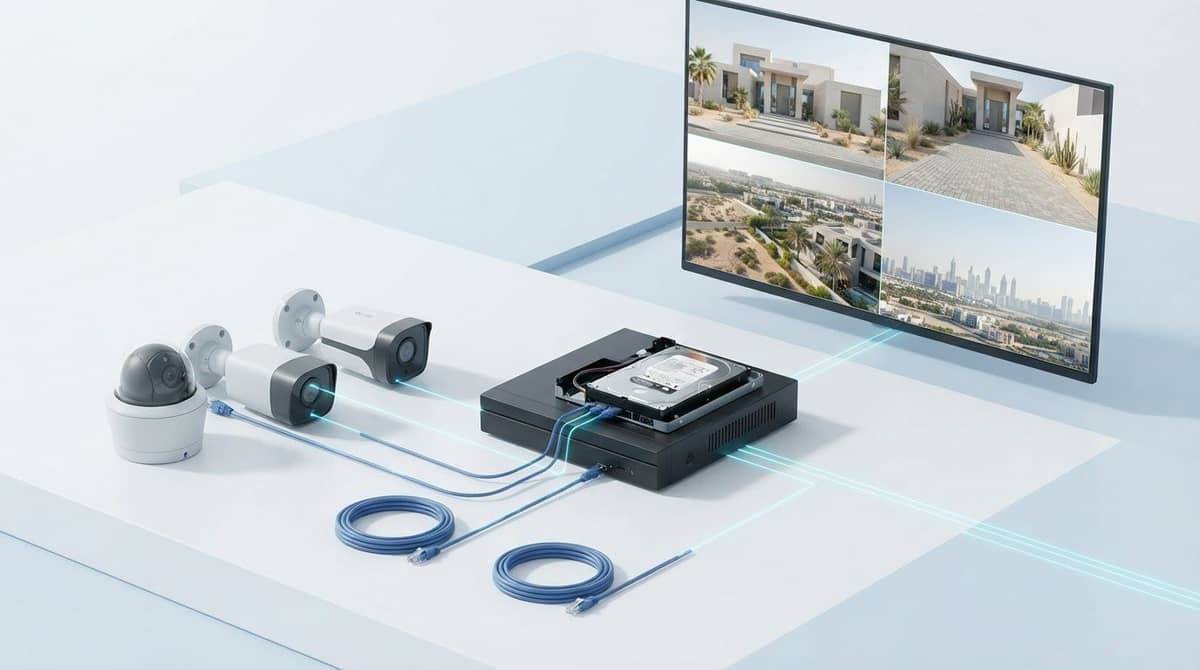
A camera’s video doesn’t travel over one connection by default. Its path depends on how the camera, recorder, router and viewing device are connected. A camera may send footage across the home network to a local recorder without continuously uploading it to the internet. Remote access is different: viewing from outside the home typically requires the video stream to pass through the home internet connection.
Trace the path before judging the internet plan. For local viewing on a device connected to the same home network, traffic may stay within that network. For remote live viewing, the home connection’s upload capacity becomes relevant. The amount used depends on stream quality and how many feeds are viewed at once.
Traffic path | Main link carrying video | What increases demand
Camera to local recorder | Wi-Fi or Ethernet on the home network | More simultaneous camera feeds, higher configured bitrates, or a separate recording stream
Camera to router | Wi-Fi or Ethernet, then the relevant network route | Camera traffic sharing the connection with other devices or streams
Home to remote viewer | Internet upload connection | Higher-quality remote streams, more simultaneous viewers or feeds, and internet-based recording
When Wi-Fi or Ethernet carries camera traffic
Wi-Fi is a shared wireless medium. Distance from the router, walls and other obstacles can affect the connection, as can other devices using the same wireless network. A camera may have a sufficient bitrate on paper but still experience an unreliable path if its signal is weak or the network is busy.
Ethernet provides a wired route between compatible equipment and can avoid some wireless constraints. Whether it suits a camera depends on its connection options, the router and recorder ports, and the home layout. Plan the physical route alongside camera placement rather than assuming every device can use the same connection type.
When internet upload speed matters
Local recording and local monitoring generally use the home network, not a continuous internet upload. Remote live viewing from outside the home depends on sending the selected stream through the internet connection. Internet-based recording or uploading clips also uses upload capacity, while viewing footage locally doesn’t necessarily require an external connection.
There isn’t one suitable upload-speed figure for every system. The needed capacity depends on camera count, configured stream quality, how many feeds are accessed remotely at once, and what else is using the connection. For 4k security camera bandwidth requirements for home network planning, keep local camera-to-recorder traffic separate from remote-access traffic in your estimate. That distinction helps identify whether a slowdown is on Wi-Fi or Ethernet inside the home, or on the internet upload path.

How to check whether your home network can handle 4K cameras
A practical network check starts with the whole setup, not just the internet plan. Record the number of cameras, each configured bitrate, where the recorder sits, and whether you’ll view feeds remotely. Then map how video travels between cameras, the router, recorder and viewing devices. The capacity required on each connection depends on the streams that actually cross it.
A practical network-capacity check
Trace each camera’s route to the router or recorder, noting whether it uses Wi-Fi or Ethernet and which network equipment the video passes through. Check the documented link capabilities of the router and recorder, then compare them with the combined demand of streams sharing each connection. A link’s stated capability is a reference point, not proof of consistent real-world performance.
Test during normal household use. View live feeds and recorded playback while other devices are active, and note unstable video, delayed loading or interruptions when several streams are used together. If a problem appears, test whether it affects one camera, one connection path or remote viewing only. That distinction can help locate a weak wireless link or a congested network segment before you consider an internet-plan change.
Separate local capacity checks from internet speed tests
A speed test can help assess the internet connection, but it doesn’t measure every camera-to-recorder or camera-to-router link inside the home. Check those local paths against the equipment’s documented capabilities and test actual playback. Separately, test internet upload performance while considering remote viewing and any internet-based recording or uploads. Keep the two checks distinct.
Capacity checklist: map camera routes, total the streams sharing each link, check device link capabilities, and test live and recorded playback during household use. Internet checklist: assess upload performance and test remote viewing at the stream quality and camera count you expect to use.
Ways to reduce unnecessary bandwidth demand
If playback struggles, review settings before making larger network changes. Where the camera system allows it, adjusting frame rate or bitrate can reduce stream demand, though lower settings may affect the footage captured. Use H.265 only when the camera and the rest of the recording and viewing system support it. Some systems also allow a separate, lower-bitrate viewing stream. Use that option only if it’s available and suits your needs.
For 4k security camera bandwidth requirements for home network planning, validate the camera settings and network paths together. Wide Way provides professional security camera installation, bringing camera placement and connectivity planning into the same setup process.
Planning a 4K camera setup with Wide Way
A sound camera plan connects three decisions: establish where video will travel, total the configured bitrate of streams sharing each connection, then validate that the network can carry them during normal household use. Resolution is only one part of the decision. Camera placement, recording method and remote-viewing habits shape the system too.
That sequence makes the 4k security camera bandwidth requirements for home network easier to apply to an actual home. It also helps you choose cameras and a recording arrangement with the network paths in mind, instead of treating installation as a separate step.
What to plan before selecting a camera system
Start with the areas you want to monitor and the number of cameras needed to cover them. Then consider how you plan to record footage and whether you expect to view feeds locally, remotely or both. These choices affect how many streams are active and which network connections carry them.
- Coverage areas: Note the views required and any practical limits on camera position, such as available mounting locations and the route to power or network connections.
- Camera count: Estimate the number of feeds that may record or be viewed at the same time.
- Recording approach: Identify the intended recording equipment and where it will connect to the home network.
- Viewing needs: Consider how many feeds may be watched remotely and the stream quality you expect to use.
With these details, compare the cameras’ specified or configured bitrates and map each stream to its network path. Placement matters: the most useful camera position may be farther from the router or require a different route to the recorder. Plan for both the view you need and the connection the system can use.
Bring camera and installation planning together
Professional CCTV installation can coordinate camera placement with network connectivity, including the paths between cameras, the router and recording equipment. That brings practical layout decisions into bandwidth planning. If you’re comparing Eufy or EZVIZ cameras, consider each selected model’s documented settings and connection options as part of the overall system plan, rather than assuming all cameras use the same bitrate or network path.
Wide Way offers security camera sales and professional installation across the UAE. A clear list of coverage needs, recording preferences and remote-viewing plans can guide camera selection and installation planning together. The aim is a considered setup based on your home’s layout and the equipment’s documented capabilities.
Explore security camera solutions and installation to learn about planning your home system.
Build a camera plan that can adapt
Make your network plan useful beyond today’s setup. Keep a record of the selected camera models, configured stream settings, recording approach and network links carrying each feed. That gives you a baseline to revisit if you add a camera, relocate equipment or change how you view footage remotely. After any change, test playback again rather than assuming the original estimate still reflects the system.
The best 4k security camera bandwidth requirements for home network plan is based on your actual equipment and household use, not resolution alone. Treat your estimate as a practical reference, then adjust it as your setup evolves. Informed changes can help you avoid unnecessary upgrades while keeping the system aligned with your needs.
Explore security camera solutions and professional installation to plan a home setup that suits your network and viewing needs.
Frequently Asked Questions
How much bandwidth does one 4K security camera need?
There’s no single bandwidth figure for a 4K camera because its configured bitrate varies with frame rate, codec, scene activity and stream settings. To estimate 4k security camera bandwidth requirements for home network planning, check the selected model’s specification or current bitrate setting. Add simultaneous feeds on each shared link. This is a planning estimate, not a guaranteed internet-plan requirement.
Is 100 Mbps enough for 4K security cameras?
100 Mbps alone can’t determine whether a 4K camera setup will work well. Compare the configured bitrates of streams sharing each local connection, then account for household use and remote viewing. A camera recording to a local recorder may use home-network capacity without continuously using internet upload. Test the actual setup while household devices are active, and assess upload separately if you view feeds from outside the home.
Do 4K security cameras use internet bandwidth when recording locally?
Not necessarily. With local recording, video still travels from the camera to the recorder or storage device over the home network, so that route must carry the active stream. If the recorder and viewing screen are at home, playback can stay local. Internet bandwidth may be involved if you access footage externally, use cloud recording or upload clips. The route depends on the system configuration.
How much upload speed do I need to view 4K security cameras remotely?
It depends on the bitrate of the outgoing stream, the number of feeds or viewers active at once, and the upload capacity available to the home. Check the camera’s remote-viewing stream settings rather than relying only on its recording bitrate. Then test playback from an external connection while the home network is in typical use. This shows whether remote viewing remains responsive alongside other household internet activity.
Will adding more 4K cameras slow down home Wi-Fi?
It can, if the added streams share Wi-Fi with existing cameras and household devices. The effect depends on bitrate, signal quality, router capability and simultaneous activity, so camera count alone won’t predict performance. Map which devices use the same wireless connection, then test live and recorded playback while those devices are active. If performance changes, identify the affected camera or route before adjusting settings or equipment.
Is Ethernet better than Wi-Fi for 4K security cameras?
Ethernet provides a wired network path, while Wi-Fi can make placement simpler where running cable isn’t practical. Neither is automatically the right choice for every home. Consider whether the camera and recorder support the connection, where the equipment sits, the network layout, distance and installation conditions. Compare the stream traffic with the capability of the intended route, then test the system from the planned camera positions.